
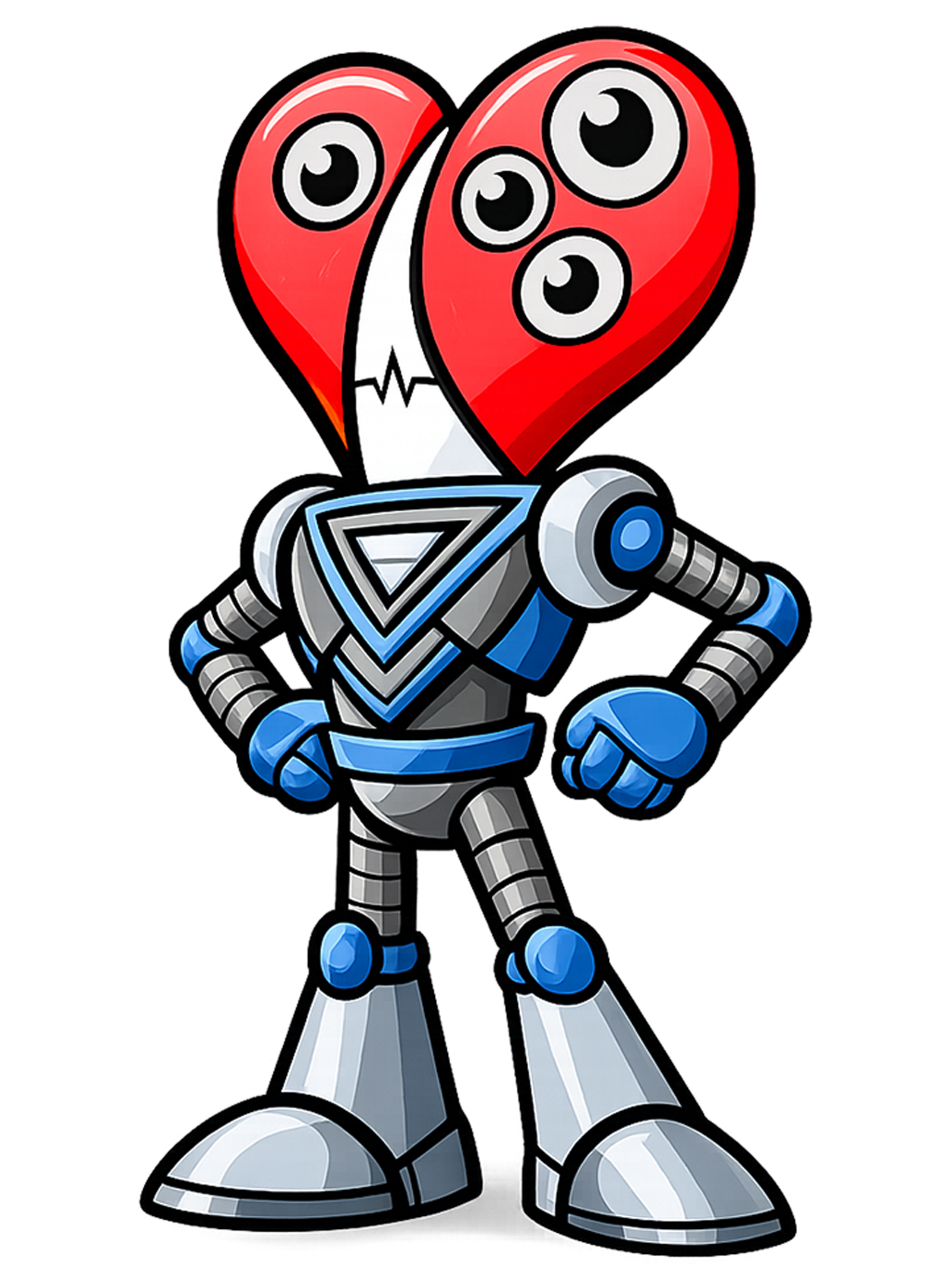
Welcome to Mission 3!
I'm Romeo, and I'll guide you through setting up your Python development environment. By the end of this mission, you'll have VS Code installed, Python ready to run, and you'll execute your first program!
Expected Result After This Mission
$ python hello.py
Hello World
What You're Building & Why These Tools
What is Python?
Python is a high-level, interpreted programming language. It reads your code line by line and executes it immediately, making it great for learning and rapid development.
Python is used for web development, data science, automation, AI, and much more.
What is VS Code?
VS Code (Visual Studio Code) is a free, powerful code editor made by Microsoft. With the right extensions, it behaves like an IDE (Integrated Development Environment).
It provides syntax highlighting, code completion, debugging, and a built-in terminal.
What is the Terminal?
The terminal (or command line) is a text-based interface to control your computer. You type commands to run programs, navigate folders, and execute Python scripts.
In VS Code: Terminal → New Terminal
Interpreter vs Compiler
Interpreter: Reads and runs code line by line (Python uses this). Easier to debug, runs immediately.
Compiler: Translates all code at once into machine code before running (like C++). Faster execution, harder to debug.
Why VS Code + Python for Class?
VS Code is free, runs on all operating systems, and has excellent Python support. Combined with Python's readable syntax, it's the perfect combo for learning to code. You'll use real tools that professionals use every day.
Install & Setup Steps
Follow these steps to get your coding environment ready. You only need to do this once!
- 1 Install Python — Download from python.org. During install, check the box "Add Python to PATH".
- 2 Install VS Code — Download from code.visualstudio.com. Install with default settings.
- 3 Open a folder/workspace in VS Code — File → Open Folder. Create a folder like Python_Practice for your work.
- 4 Install the Python extension — Click the Extensions icon (or Ctrl+Shift+X), search "Python", and install the one by Microsoft.
- 5 Create and run hello.py — Right-click in the file explorer → New File → name it hello.py. Type print("Hello World") and save.
- 6 Run from terminal — Open Terminal (Terminal → New Terminal). Type python hello.py and press Enter. You should see "Hello World" appear!
- 7 Understand packages & pip — Packages are add-ons for Python. pip is the tool to install them. Example: pip install requests
- 8 Virtual environments (optional) — These isolate project dependencies. Create with python -m venv myenv. Useful for bigger projects.
Tool Links
Quick access to everything you need:
Mission 3 Terms
Learn these vocabulary words — they'll help you understand the coding missions ahead.
Meet Your Mission Guides
Each Python mission is led by a LivingBot with unique skills. Click on a mission to start learning!
Romeo
Mission 3: SetupA hopeless romantic with a Napoleon complex. Very smart, very driven, dedicated, and loyal. Romeo keeps his heart on his sleeve and works hard to help you get started.
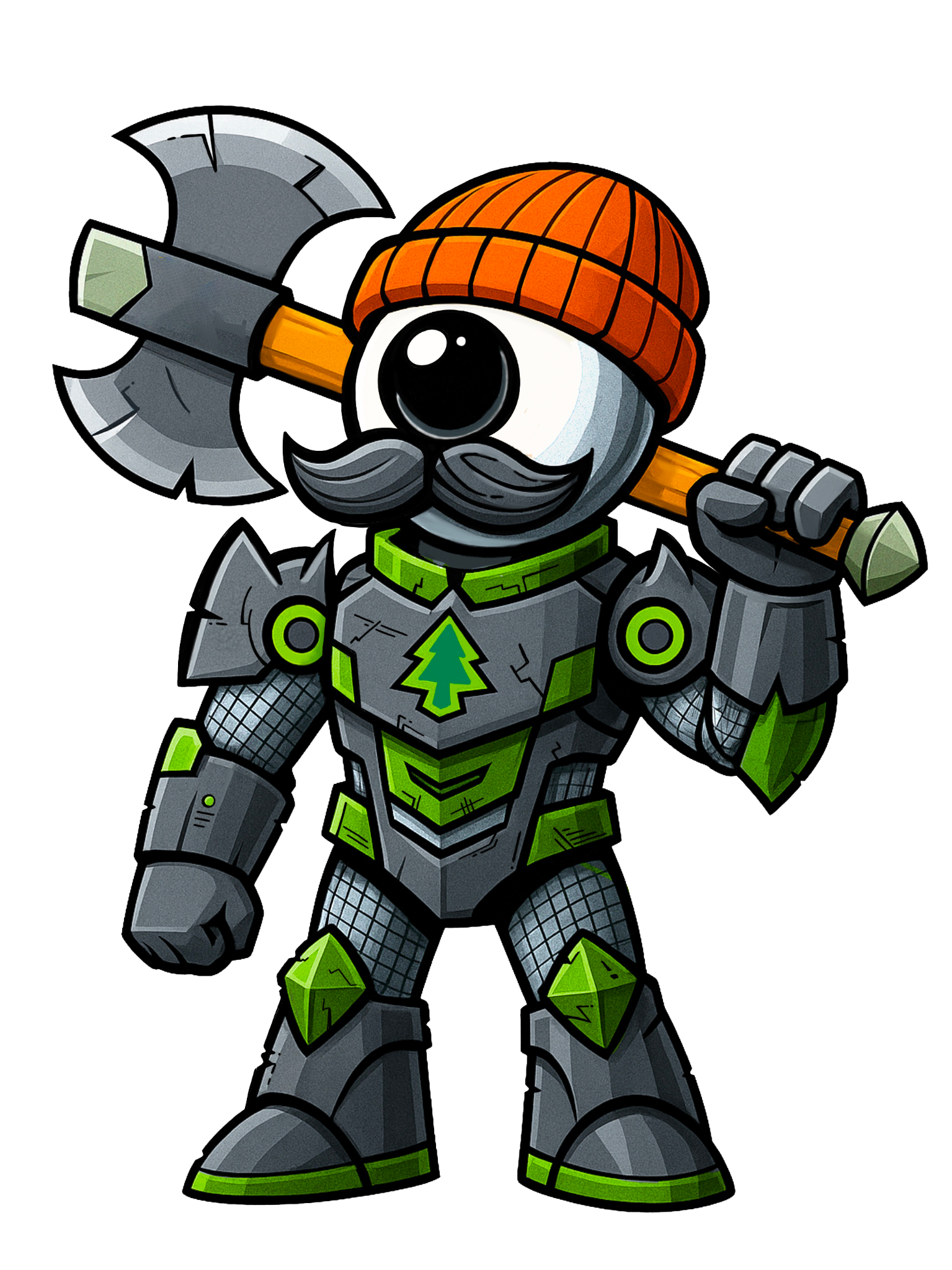
November
Mission 4: Python AThe burly lumberjack bot who's always up for tough tasks. A combat fighter and tactical strategist — dedicated, loyal, and reliable. November takes his programming seriously.

India
Mission 5: Python BShares the elephant's best qualities: wisdom, strength, and memory. India charges in first, removing obstacles along the way. A leader who represents diversity and being headstrong.
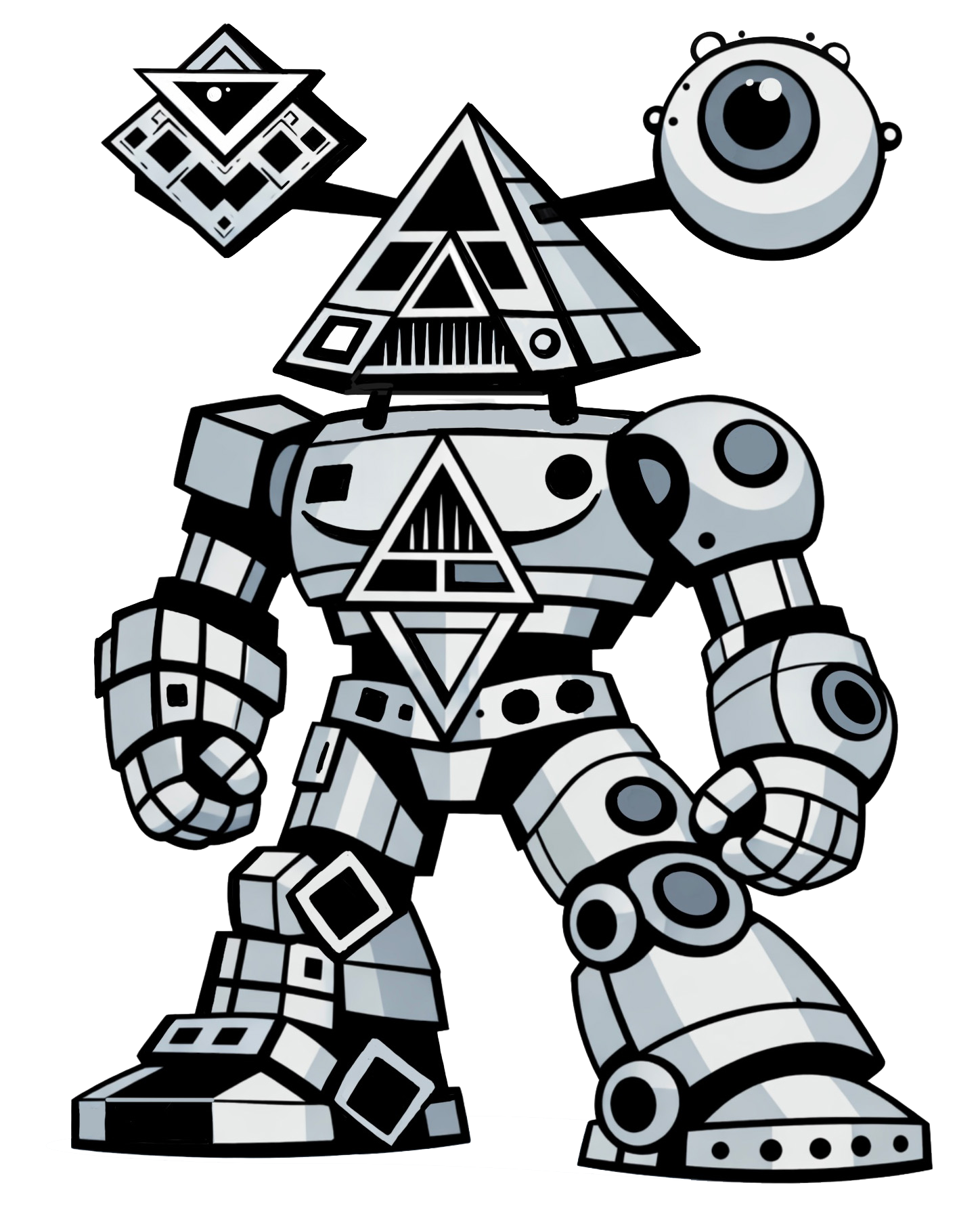
Kilo
Mission 6: Python CTwo heads are better than one! One side circles, the other side squares. Kilo thrives when both personalities collaborate — works best with a level head.